







Have you ever opened your iPhone or Mac, tried to sign into your Apple account, and realized you completely forgot your Apple ID password? It’s a frustrating situation, especially when you don’t want to go through the hassle of changing your password and updating it across all your devices.
If you’re wondering how to find Apple ID password without resetting it, the good news is that you may be able to view a previously saved password using Apple’s built-in password management tools. This guide explains the legitimate ways to check saved Apple ID credentials, how Apple security works, and what to do if your password cannot be recovered.
Understanding Apple ID Password Security
Before trying to retrieve your password, it helps to understand how Apple protects your account.
Your Apple ID (now commonly referred to as your Apple Account) controls access to services such as:
- iCloud
- App Store purchases
- Apple Music
- FaceTime
- iMessage
- Device backups
- Find My iPhone
For privacy reasons, Apple does not allow users to simply view their Apple ID password from account settings. However, if your password was previously saved on a trusted device, you might be able to see it through Apple’s password manager.
Check Saved Passwords on an iPhone or iPad
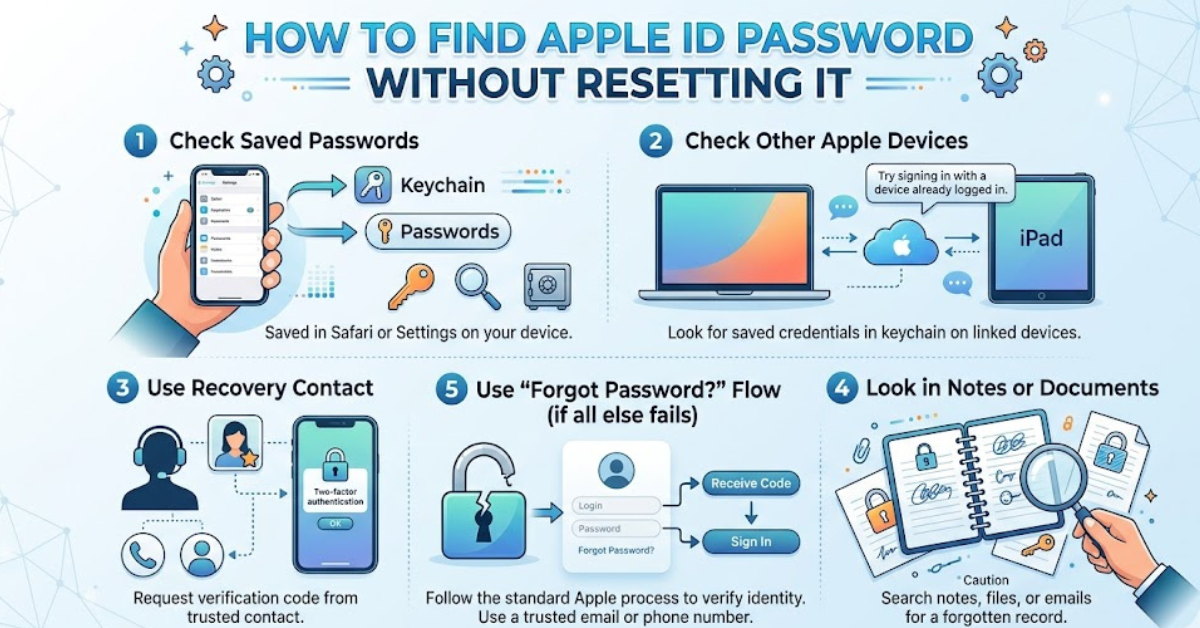
One of the easiest methods for finding a saved Apple ID password is through the Passwords feature in iOS or iPadOS.
Steps to view saved passwords on iPhone
- Open the Settings app.
- Scroll down and tap Passwords.
- Verify your identity using Face ID, Touch ID, or your passcode.
- Use the search bar to look for:
- apple.com
- icloud.com
- Apple services linked to your account
- Tap the saved entry to see the username and password.
If your Apple ID credentials were stored in iCloud Keychain, you may be able to view the password directly.
Tip: This only works if you previously allowed your iPhone to save the password.
Find Apple ID Password Using Keychain Access on Mac
Mac users have another useful tool called Keychain Access, which securely stores passwords, certificates, and account information.
How to check Apple ID password on Mac
- Open Finder.
- Go to Applications > Utilities.
- Launch Keychain Access.
- Enter terms like:
- Apple ID
- iCloud
- apple.com
- Select the relevant entry.
- Click Show Password.
- Enter your Mac administrator password or use Touch ID.
The saved password will appear if it exists in your Keychain database.
Use Passwords in Safari
Safari can also store login credentials, making it another place to check.
On Mac:
- Open Safari.
- Click Safari > Settings.
- Select the Passwords tab.
- Authenticate with Touch ID or your Mac password.
- Search for Apple-related websites.
On iPhone:
Safari passwords are available through:
Settings > Passwords
This section uses the same iCloud Keychain database to display stored credentials.
Check Passwords Saved on Other Devices
If you have multiple Apple devices, your password might be stored on another device that syncs through iCloud Keychain.
For example:
- An old iPhone
- A secondary iPad
- A MacBook
- Another Mac desktop
Sign in to that trusted device and check the Passwords section.
This is often the most successful approach when trying to recover a forgotten Apple password without changing it.
Can You Find Your Apple ID Password in Apple Settings?
Many users expect to find their password directly under:
Settings > Your Name > Apple ID
However, Apple does not display your existing password in account settings.
You can see information like:
- Your Apple ID email address
- Devices connected to your account
- Subscription details
- Payment methods
- Security settings
The actual password remains hidden to protect your privacy.
What If Your Apple ID Password Is Not Saved?
If you cannot find a saved copy of your password, there is no legitimate way to reveal it.
Be cautious of websites, apps, or software claiming they can unlock or display your Apple ID password. These tools often pose security risks and may attempt to steal your information.
Your safest option is to use Apple’s official account recovery process and create a new password.
Tips to Avoid Forgetting Your Apple ID Password Again
Once you regain access to your account, use these practices to prevent future problems:
Enable iCloud Keychain
Apple’s password manager securely stores and syncs your passwords across trusted devices.
Use a Strong but Memorable Password
Create a password that combines:
- Uppercase letters
- Lowercase letters
- Numbers
- Special characters
Consider using a memorable phrase rather than a random string.
Use a Password Manager
Dedicated password managers can store your Apple credentials securely and make them easier to access when needed.
Keep Your Recovery Information Updated
Ensure your:
- Trusted phone number
- Recovery email
- Security settings
remain current so account recovery is easier if needed.
Key Takeaways
- You cannot directly view your Apple ID password in account settings.
- You may find it if it was saved in iCloud Keychain, Safari, or Keychain Access on a Mac.
- Trusted Apple devices are the safest places to check for stored credentials.
- Avoid third-party tools that promise to reveal passwords.
- If the password is not saved anywhere, resetting it through Apple is the only secure option.
Frequently Asked Questions
Can I find my Apple ID password without changing it?
Yes, but only if it was previously saved in a password manager such as iCloud Keychain, Safari Passwords, or Keychain Access on a Mac.
How do I see my Apple ID password on my iPhone?
Go to Settings > Passwords and authenticate using Face ID, Touch ID, or your device passcode. Search for Apple-related entries to check whether the password is saved.
Can Apple customer support tell me my Apple ID password?
No. Apple cannot see or reveal your current password due to its privacy and encryption policies. They can only help you recover access to your account.
Is there an app that can show my Apple ID password?
No trustworthy app can bypass Apple’s security to reveal a password that has not been saved. Be cautious of software claiming to hack or recover Apple passwords.
Why can’t I view my Apple ID password in Settings?
Apple intentionally hides account passwords to protect users from unauthorized access. Only saved password entries in secure password storage can be viewed.
Can I recover my Apple ID password without an email or phone number?
It may be possible through Apple’s account recovery process using available identity verification methods, but you cannot retrieve the existing password directly.
Conclusion
For users searching for how to find Apple ID password without resetting it, the answer depends on whether the password has been securely saved on one of your trusted devices. Checking iCloud Keychain, Safari Passwords, or Keychain Access on a Mac can often help you recover your login details without creating a new password.
If the password was never saved, there is no safe or legitimate method to view it. In that situation, using Apple’s official recovery process is the best way to regain access while keeping your personal data secure. Take advantage of password managers and updated recovery options to make future sign-ins easier and stress-free.