







Have you ever put your phone on Focus mode to enjoy some peace, only to receive an alert that still breaks through your silence? That’s likely a Time Sensitive Notification. While this feature can be useful for urgent messages, many users prefer to control when and how they receive interruptions.
If you’re wondering how to turn off time sensitive notifications, this guide will walk you through the exact steps for iPhone, explain how the feature works, and show you how to customize your notification settings for a better digital experience.
What Are Time Sensitive Notifications?
Time Sensitive Notifications are a special category of alerts introduced by Apple with iOS 15. They are designed for messages or updates that require immediate attention, even when a Focus mode such as Do Not Disturb is enabled.
These notifications may include:
- Delivery updates
- Security alerts
- Calendar reminders
- Banking notifications
- Health and safety warnings
- Important messages from certain apps
Unlike standard notifications, Time Sensitive alerts can appear immediately and remain visible on the Lock Screen for up to an hour.
Why You Might Want to Disable Time Sensitive Notifications
The feature can be helpful, but it isn’t necessary for everyone. Some users find that too many apps classify their messages as urgent, creating unnecessary distractions.
Common reasons to turn them off include:
- Reducing interruptions during work or sleep
- Making Focus modes more effective
- Limiting promotional or non-essential alerts
- Taking better control of smartphone usage
By adjusting your settings, you decide which apps can break through your quiet time.
How to Turn Off Time Sensitive Notifications on iPhone
Apple allows you to disable these alerts either for individual apps or through your Focus settings.
Turn Off Time Sensitive Notifications for Specific Apps
Follow these steps:
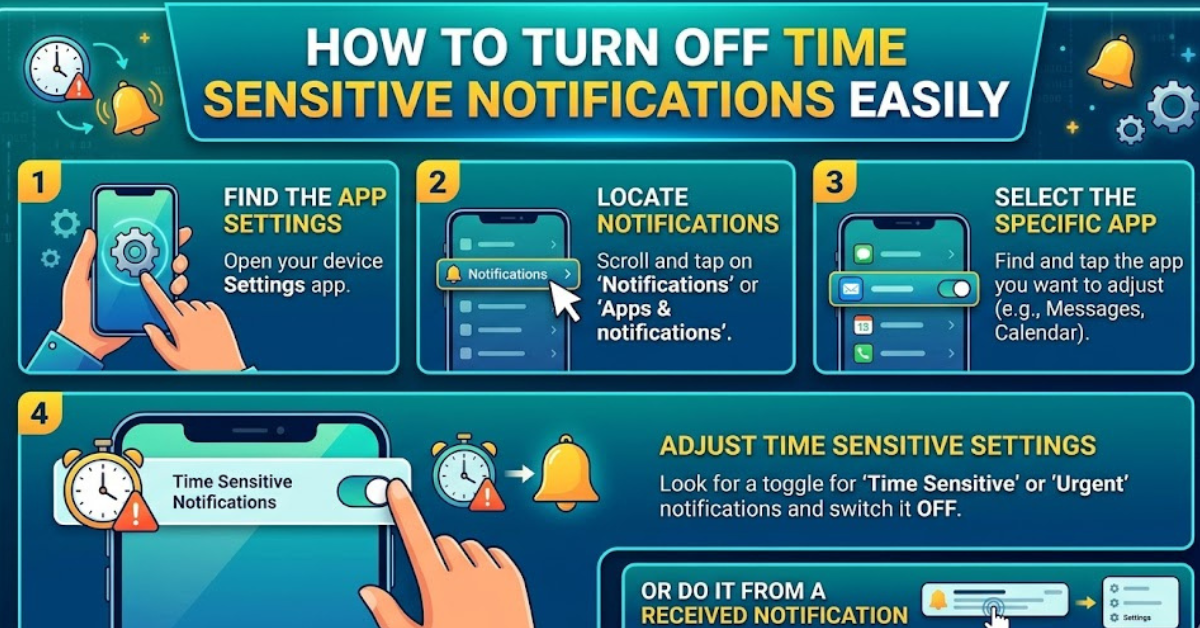
- Open the Settings app on your iPhone.
- Tap Notifications.
- Select the app you want to manage.
- Find the Time Sensitive Notifications option.
- Toggle the switch Off.
Once disabled, that app will no longer send alerts that bypass your Focus settings.
Disable Time Sensitive Notifications Through Focus Mode
If you use Do Not Disturb or other Focus profiles, you can adjust how Time Sensitive alerts behave.
Here’s how:
- Go to Settings.
- Tap Focus.
- Choose a Focus mode, such as Do Not Disturb, Sleep, or Work.
- Select Apps under the allowed notifications section.
- Turn off the option labeled Allow Time Sensitive Notifications.
This prevents Time Sensitive alerts from interrupting your chosen Focus mode.
How to Turn Off Time Sensitive Notifications on iPad
The process is almost identical on an iPad running iPadOS 15 or later.
Disable Alerts From Individual Apps
- Open Settings.
- Tap Notifications.
- Choose the desired app.
- Switch off Time Sensitive Notifications.
Adjust Focus Settings
Go to:
Settings → Focus → Select a Focus mode → Apps → Turn off Allow Time Sensitives Notifications
Your iPad will then follow the updated notification rules.
What Happens After You Turn Off Time Sensitive Notifications?
Disabling this feature does not stop all notifications.
You will still receive:
- Regular app alerts
- Messages allowed by your notification settings
- Calls or notifications from approved contacts in Focus mode
The main difference is that those apps can no longer mark their alerts as important enough to bypass your restrictions.
Can You Turn Off Time Sensitives Notifications for Every App at Once?
Many users search for a universal switch to disable all Time Sensitive alerts. However, Apple does not provide a single global option to remove them for every app.
You have two choices:
- Disable the feature individually for each app in Notification settings.
- Turn off Time Sensitive notifications within each Focus profile.
This gives you more control over which alerts are allowed.
Tips for Better Notification Management
Managing notifications effectively can make your device less distracting.
Try these practical strategies:
Review Your App Notifications Regularly
Many apps request notification permission when installed. Every few months, check your settings and disable alerts you no longer need.
Use Focus Modes Strategically
Create separate Focus profiles for:
- Work hours
- Sleep time
- Exercise
- Personal relaxation
Each profile can have customized rules for contacts and apps.
Keep Important Apps Enabled
Consider keeping Time Sensitives alerts active for services that genuinely matter, such as:
- Security systems
- Medical apps
- Banking alerts
- Transportation updates
This balances convenience with fewer interruptions.
Common Issues When Turning Off Time Sensitive Notifications
Sometimes users cannot find the setting or the option appears unavailable.
Possible reasons include:
Your iPhone Software Is Outdated
Time Sensitive Notifications require iOS 15 or newer. Update your device by going to:
Settings → General → Software Update
The App Does Not Support Time Sensitives Alerts
Only apps that have requested permission from Apple to send these alerts will show the option.
Notification Permissions Are Disabled
If an app’s notifications are completely turned off, you may not see the Time Sensitive setting because the app cannot send alerts at all.
Key Takeaways
- Time Sensitive Notifications are priority alerts that can bypass Focus modes.
- You can disable them for individual apps through Settings → Notifications.
- Focus settings allow you to block these alerts while a specific mode is active.
- Turning them off helps reduce distractions without disabling all notifications.
- Keep the feature enabled for apps involving safety, security, or important updates.
Frequently Asked Questions
How do I completely turn off Time Sensitives Notifications on my iPhone?
There is no single master switch for all apps. You need to disable the feature app-by-app or turn off Time Sensitive alerts within your Focus modes.
Why am I still receiving notifications during Do Not Disturb?
Some apps may be allowed through your Focus settings, or Time Sensitive alerts may still be enabled. Review your Focus app permissions to stop unwanted interruptions.
Can I turn off Time Sensitives Notifications for one app only?
Yes. Open Settings, go to Notifications, choose the app, and switch off the Time Sensitive option.
Are Time Sensitives Notifications available on Android?
The exact Apple feature is exclusive to iPhone and iPad. However, Android devices offer similar priority notification and Do Not Disturb exception controls.
Will turning off Time Sensitives Notifications stop text messages?
No. Regular messages will still follow your normal notification and Focus settings. It only prevents apps from using the special Time Sensitive priority category.
Why don’t I see the Time Sensitives Notifications option?
The app may not support the feature, your iPhone may need a software update, or notifications for that app may already be disabled.
Conclusion
Learning how to turn off time sensitive notifications gives you more control over your iPhone or iPad experience. Although these alerts are designed for urgent information, they can sometimes become another source of unnecessary interruptions.
By customizing your notification and Focus settings, you can create a quieter, more productive digital environment while still allowing truly important alerts to reach you. Take a few minutes to review your settings and make your device work the way you want it to.