








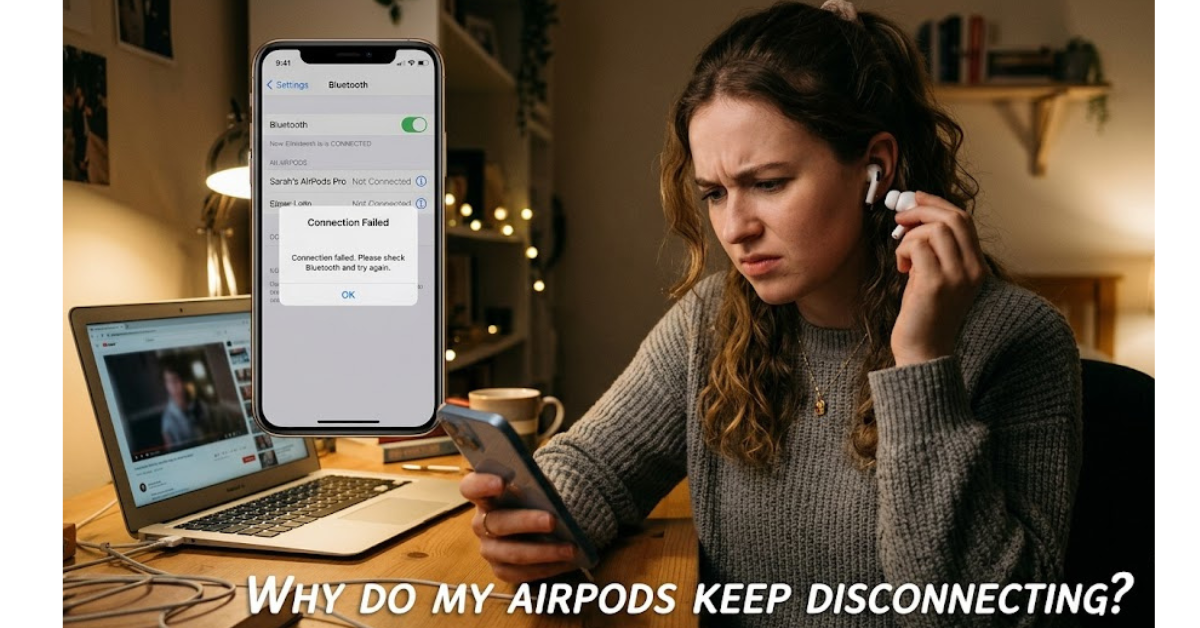
There’s nothing more frustrating than listening to your favorite playlist or taking an important phone call when your AirPods suddenly disconnect. One moment everything works perfectly, and the next, the audio stops or switches back to your iPhone, iPad, or Mac without warning.
If you’ve been asking yourself, why do my AirPods keep disconnecting, you’re not alone. This is one of the most common issues reported by Apple users, and the good news is that it’s often easy to fix. In this guide, we’ll explore the most likely causes behind frequent AirPods disconnections, walk through step-by-step troubleshooting methods, and share practical tips to prevent the problem from happening again.
Whether you own AirPods (1st, 2nd, or 3rd generation), AirPods Pro, or AirPods Max, these solutions can help restore a stable Bluetooth connection.
Why Do My AirPods Keep Disconnecting?
AirPods rely on Bluetooth technology to stay connected to your Apple devices. When something interrupts that wireless connection—whether it’s software, hardware, or environmental interference—you may notice random disconnects.
Some of the most common reasons include:
- Low battery levels
- Bluetooth interference
- Outdated software
- Automatic device switching
- Corrupted Bluetooth settings
- Hardware issues
- Dirty charging contacts
- Incorrect Bluetooth configuration
Fortunately, identifying the cause is usually the hardest part.
Check Your AirPods Battery First
One of the simplest explanations is also the most overlooked.
When your AirPods battery becomes critically low, they may disconnect repeatedly or fail to reconnect automatically.
How to check battery level
- Open the AirPods case near your iPhone.
- View the Battery widget.
- Ask Siri, “What’s my AirPods battery?”
- Check Bluetooth settings.
If either earbud has significantly less charge than the other, clean the charging contacts and ensure both earbuds are charging correctly.
Bluetooth Interference Can Interrupt the Connection
Bluetooth works over short distances, typically around 30–60 feet under ideal conditions.
However, many everyday devices use the same 2.4 GHz frequency.
Common sources of interference include:
- Wi-Fi routers
- Wireless speakers
- Microwave ovens
- Baby monitors
- Smart home devices
- Other Bluetooth accessories
How to reduce interference
- Move closer to your device.
- Turn off unused Bluetooth accessories.
- Avoid crowded wireless environments.
- Disconnect unnecessary Bluetooth devices.
Update Your iPhone and AirPods Software
Software bugs can cause unexpected Bluetooth disconnects.
Apple regularly releases updates that improve Bluetooth stability and overall performance.
Update your iPhone
Go to:
Settings → General → Software Update
Install any available updates.
Update AirPods firmware
AirPods update automatically when:
- They’re charging.
- Connected to Wi-Fi through your paired iPhone.
- Located near your iPhone.
You cannot manually install firmware updates, but keeping your iPhone updated helps ensure the latest firmware gets installed.
Turn Off Automatic Device Switching
Apple introduced Automatic Switching so AirPods can move between your Apple devices automatically.
While convenient, it sometimes creates unexpected disconnects.
For example:
- You’re watching YouTube on your Mac.
- Someone sends a voice message to your iPhone.
- Your AirPods suddenly switch devices.
Disable Automatic Switching
- Connect AirPods.
- Open Settings.
- Tap Bluetooth.
- Tap the (i) beside your AirPods.
- Select Connect to This iPhone.
- Choose When Last Connected to This iPhone.
Many users notice immediate improvements after disabling this feature.
Forget and Reconnect Your AirPods
Sometimes Bluetooth settings become corrupted.
Removing and reconnecting your AirPods creates a fresh connection.
Steps
- Open Bluetooth settings.
- Tap the information icon beside AirPods.
- Select Forget This Device.
- Place AirPods back in the charging case.
- Hold the setup button until the status light flashes white.
- Pair them again.
This often resolves recurring connection issues.
Reset Your AirPods
If reconnecting doesn’t help, perform a complete factory reset.
Reset instructions
- Place AirPods in the charging case.
- Close the lid for about 30 seconds.
- Open the lid.
- Hold the setup button for approximately 15 seconds.
- Wait until the light flashes amber, then white.
- Pair the AirPods again.
Resetting clears many software-related glitches.
Check Bluetooth Settings on Your Device
Incorrect Bluetooth settings may affect connection reliability.
Verify that:
- Bluetooth is enabled.
- AirPods are selected as the active audio output.
- Bluetooth isn’t constantly reconnecting to another device.
Sometimes simply turning Bluetooth off and back on resolves temporary issues.
Clean Your AirPods and Charging Case
Dirt may seem harmless, but it can prevent proper charging.
If one AirPod isn’t charging correctly, it may repeatedly disconnect because of insufficient battery.
Clean safely
Use:
- A soft microfiber cloth
- Dry cotton swab
- Soft anti-static brush
Avoid:
- Water
- Sharp metal tools
- Compressed air directly into speaker mesh
Clean the charging contacts inside the case as well.
Check for Physical Damage
Drops, moisture exposure, and everyday wear can affect Bluetooth performance.
Look for:
- Cracks
- Water damage
- Loose speaker grills
- Damaged charging contacts
- Bent charging pins
If physical damage exists, software fixes may not solve the issue.
Test Your AirPods with Another Device
This helps determine where the problem originates.
Try pairing them with:
- Another iPhone
- An iPad
- A MacBook
- Another compatible Bluetooth device
If disconnects happen everywhere, the issue likely lies with the AirPods.
If they work perfectly elsewhere, your original device may need troubleshooting.
Restart Your iPhone, iPad, or Mac
Many Bluetooth problems disappear after a simple restart.
Restarting clears temporary system processes that may interfere with wireless connections.
Although basic, this solution is surprisingly effective.
Reset Network Settings
Persistent Bluetooth issues may be linked to broader network settings.
On iPhone:
Settings → General → Transfer or Reset iPhone → Reset → Reset Network Settings
Keep in mind:
- Saved Wi-Fi passwords will be erased.
- Bluetooth settings reset.
- VPN configurations reset.
Reconnect your AirPods afterward.
Environmental Factors Can Affect Bluetooth
Sometimes the problem isn’t your AirPods at all.
Bluetooth performance decreases around:
- Airports
- Shopping malls
- Stadiums
- Large offices
- Busy coffee shops
Hundreds of wireless signals operating simultaneously can reduce Bluetooth reliability.
Testing your AirPods at home helps determine whether interference is the cause.
When It’s Time to Contact Apple
If you’ve tried every troubleshooting step and your AirPods still disconnect, hardware failure becomes more likely.
Contact Apple if you notice:
- Frequent disconnects after resetting
- One AirPod constantly disconnecting
- Battery draining unusually fast
- Charging problems
- Physical damage
- Distorted audio along with connection issues
Apple Support can run diagnostics and determine whether repair or replacement is necessary.
Tips to Prevent Future AirPods Disconnects
Good habits can help maintain a stable connection.
- Keep AirPods firmware updated.
- Install iOS updates regularly.
- Clean the charging case monthly.
- Avoid fully draining the battery frequently.
- Store AirPods in their charging case.
- Reduce Bluetooth interference when possible.
- Disconnect unused Bluetooth accessories.
Routine maintenance often prevents recurring connectivity problems.
Key Takeaways
- Most AirPods disconnect because of Bluetooth interference, software glitches, or low battery.
- Updating your devices often fixes connection issues.
- Resetting and reconnecting AirPods solves many persistent problems.
- Automatic Device Switching may cause unexpected disconnects.
- Cleaning charging contacts ensures both earbuds receive a full charge.
- Hardware damage may require professional service.
Frequently Asked Questions
Why do my AirPods keep disconnecting even when fully charged?
If your AirPods have plenty of battery but still disconnect, the issue is often related to Bluetooth interference, outdated software, or Automatic Device Switching. Resetting and repairing the AirPods usually resolves the problem.
Why does only one AirPod keep disconnecting?
One AirPod may disconnect if its battery isn’t charging properly, the charging contacts are dirty, or the earbud has developed a hardware issue. Cleaning the case and resetting the AirPods are good first steps.
Can Bluetooth interference cause AirPods to disconnect?
Yes. Wi-Fi networks, other Bluetooth devices, and crowded wireless environments can interfere with Bluetooth signals, causing intermittent disconnections.
Do software updates fix AirPods connection issues?
Often, yes. Apple regularly releases updates that improve Bluetooth performance, compatibility, and overall stability between AirPods and Apple devices.
Should I reset my AirPods if they keep disconnecting?
Yes. Resetting AirPods removes corrupted settings and creates a fresh Bluetooth connection. It’s one of the most effective troubleshooting methods for persistent connectivity issues.
Can a failing battery cause AirPods to disconnect?
Absolutely. Older AirPods with degraded batteries may disconnect unexpectedly, especially during calls or while streaming audio. If battery health has significantly declined, replacement may be the best long-term solution.
Conclusion
Random AirPods disconnects can be annoying, but they’re rarely impossible to fix. In most cases, the issue comes down to Bluetooth interference, outdated software, incorrect settings, or battery-related problems. By working through the troubleshooting steps in this guide—from checking battery levels and updating software to resetting your AirPods—you can usually restore a stable, reliable connection in just a few minutes.
If the problem persists after trying every solution, it’s worth contacting Apple Support to rule out a hardware fault. Keeping your AirPods clean, updated, and properly charged will also go a long way toward preventing future connection issues and ensuring a smoother listening experience.