






Have you ever tried opening an app on your Mac only to be greeted with a warning that stops you in your tracks? Many users encounter the message “apple could not verify is free of malware” and immediately wonder whether their computer is infected or if the app is unsafe.
The good news is that this warning doesn’t always mean the software contains malware. In many cases, it’s a security check performed by Apple’s built-in protection systems. Understanding why this message appears can help you make the right decision without compromising your Mac’s security.
In this guide, you’ll learn what the warning means, why it appears, how to fix it safely, and when you should avoid bypassing Apple’s security protections.
What Does “Apple Could Not Verify Is Free of Malware” Mean?
The warning is generated by macOS security features, particularly Gatekeeper and Apple’s notarization system.
When you download an application from outside the Mac App Store, Apple checks whether:
- The software comes from an identified developer
- The app has been notarized by Apple
- The application appears safe to run
- The software has not been altered after signing
If these checks fail, macOS may display a message stating that Apple cannot verify the application is free of malware.
This warning is designed to protect users from malicious software, ransomware, spyware, and other cybersecurity threats.
Why Does This Error Appear?
Several factors can trigger this warning.
The App Is Not Notarized
Apple requires developers to submit their applications for a notarization review.
If a developer hasn’t completed this process, macOS may block the application even if it’s completely legitimate.
The Developer Is Unidentified
Applications from unknown developers often trigger security warnings.
Apple prefers software distributed by registered developers who use valid code-signing certificates.
The App Was Modified
If software files have been changed after signing, macOS may consider them suspicious.
This can happen because of:
- Corrupted downloads
- Incomplete installations
- Unauthorized modifications
Outdated Software
Older applications created before Apple’s stricter security policies may not meet current requirements.
As a result, macOS may flag them even though they previously worked without issues.
Security Restrictions in New macOS Versions
Recent versions of macOS include stronger security measures.
Apps that run perfectly on older systems may trigger verification errors after upgrading your operating system.
Understanding Apple’s Security Systems
To understand the warning, it helps to know how Apple’s security infrastructure works.
Gatekeeper
Gatekeeper is macOS’s first line of defense against potentially harmful software.
Its primary functions include:
- Verifying developer identities
- Checking application signatures
- Blocking suspicious software
- Preventing unauthorized execution
Notarization
Notarization is an additional security layer.
Developers submit applications to Apple, where automated scans check for known malware patterns and suspicious behavior.
A notarized app isn’t guaranteed to be perfect, but it has passed Apple’s security screening.
XProtect
XProtect is Apple’s built-in malware detection system.
It automatically scans files and blocks known threats without requiring separate antivirus software.
Is the Warning Always a Sign of Malware?
No.
One of the biggest misconceptions is that the message automatically means the application contains malicious code.
In reality, many trustworthy applications trigger the warning because:
- They were developed by small independent developers
- The developer skipped notarization
- The software is older
- The app was downloaded from an unofficial source
However, you should never ignore the warning without investigating the software’s legitimacy first.
How to Fix “Apple Could Not Verify Is Free of Malware”
Method 1: Download the App Again
Corrupted downloads can cause verification failures.
Steps:
- Delete the current installer.
- Visit the developer’s official website.
- Download the latest version.
- Attempt installation again.
This simple solution resolves many verification issues.
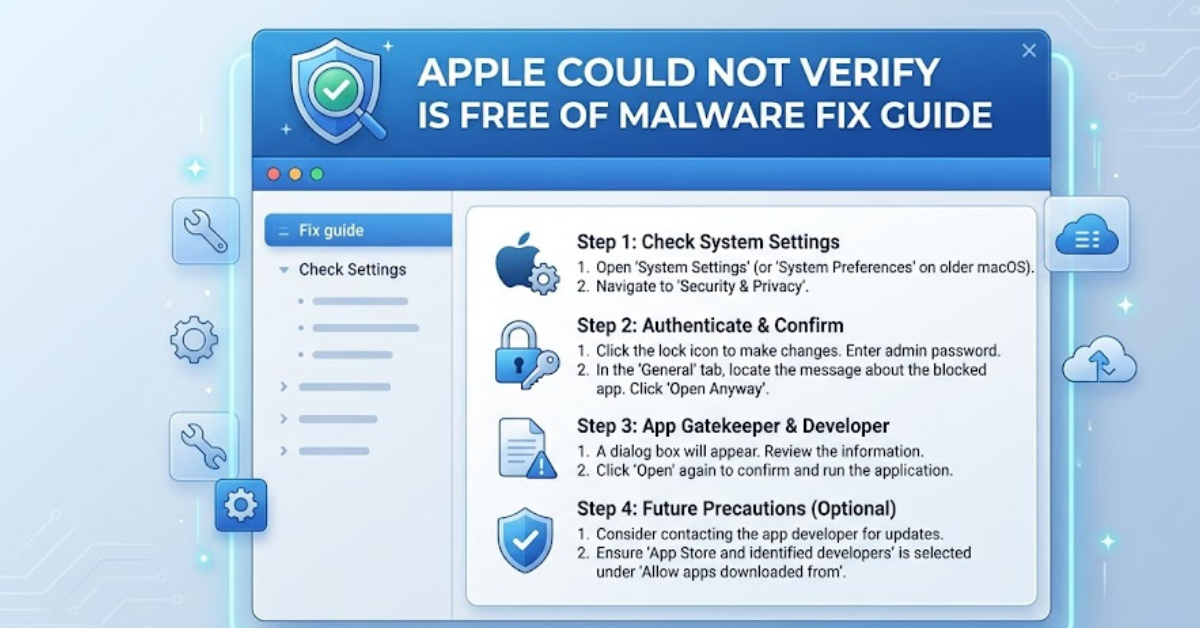
Method 2: Open the App Through System Settings
If you trust the application, macOS allows you to override the warning.
On Recent macOS Versions
- Attempt to open the app.
- When the warning appears, close it.
- Open System Settings.
- Go to Privacy & Security.
- Scroll down to the Security section.
- Click Open Anyway.
- Confirm your choice.
The application should launch successfully.
Method 3: Use the Context Menu
Another common workaround involves opening the application manually.
- Locate the app in Finder.
- Right-click the application.
- Select Open.
- Choose Open again when prompted.
This method often bypasses Gatekeeper for trusted software.
Method 4: Update macOS
An outdated operating system can sometimes create compatibility issues.
To update macOS:
- Open System Settings.
- Select General.
- Click Software Update.
- Install available updates.
- Restart your Mac.
Updates often improve security verification processes.
Method 5: Contact the Developer
If the warning persists, contact the software developer.
Ask whether:
- The app is notarized
- A newer version exists
- There are known compatibility issues with your macOS version
Many developers provide updated builds specifically designed to resolve verification errors.
When You Should Not Bypass the Warning
Although it’s possible to override Apple’s security system, doing so isn’t always wise.
Avoid bypassing the warning if:
- You downloaded the software from an unknown website
- The developer has no reputation
- Online reviews are suspicious or nonexistent
- The app requests excessive permissions
- Antivirus software flags the file
These could be indicators of genuine security risks.
Common Apps That May Trigger the Warning
Users frequently report verification messages when installing:
- Open-source software
- Independent developer tools
- Legacy Mac applications
- Beta software
- Specialized business programs
- Custom enterprise applications
The presence of the warning alone doesn’t automatically indicate danger.
How to Check Whether an App Is Safe
Before overriding the security warning, perform a few checks.
Verify the Source
Only download software from:
- Official developer websites
- Trusted software repositories
- Recognized distribution platforms
Research the Developer
Look for:
- Company information
- User reviews
- Established history
- Active support channels
Scan the File
Consider running the file through:
- macOS security tools
- Reputable antivirus software
- Enterprise security solutions
Check Digital Signatures
Signed applications provide additional assurance that the software hasn’t been altered.
Common Mistakes Users Make
Many Mac users accidentally increase security risks by:
- Disabling Gatekeeper entirely
- Downloading software from random websites
- Ignoring multiple security warnings
- Installing outdated software versions
- Granting unnecessary permissions
Maintaining security awareness is essential, even when dealing with legitimate software.
Practical Tips for Avoiding Future Verification Errors
To minimize future issues:
- Keep macOS updated
- Download apps from trusted sources
- Use official developer websites
- Remove outdated software
- Enable automatic security updates
- Verify software authenticity before installation
These habits improve both convenience and cybersecurity.
Key Takeaways
- The apple could not verify is free of malware warning is a security feature, not necessarily proof of malware.
- Gatekeeper and notarization help protect Mac users from harmful software.
- Legitimate applications can sometimes trigger the warning.
- Always verify the software source before bypassing security checks.
- Use macOS-approved methods such as Open Anyway if you trust the application.
- Never disable security protections without understanding the risks.
Frequently Asked Questions
Why does my Mac say Apple could not verify an app is free of malware?
This usually happens when the app is not notarized, comes from an unidentified developer, or fails Apple’s security verification process.
Is it safe to bypass the Apple malware verification warning?
It can be safe if you downloaded the application from a trusted source and verified the developer’s legitimacy. Always perform basic security checks first.
How do I open an app when Apple could not verify it is free of malware?
Go to System Settings > Privacy & Security and select Open Anyway, or right-click the application and choose Open.
Does the warning mean the app contains malware?
No. The warning simply means Apple could not fully verify the application’s safety. Many legitimate apps can trigger the message.
Can updating macOS fix the issue?
Yes. In some cases, updating macOS resolves compatibility and verification problems, especially with recently notarized applications.
Why do independent developers trigger this warning more often?
Smaller developers may not complete Apple’s notarization process immediately, causing their applications to be flagged despite being legitimate.
Conclusion
Encountering the apple could not verify is free of malware message can be frustrating, especially when you’re trying to install software you trust. However, the warning exists for a good reason: protecting your Mac from potentially harmful applications.
Rather than immediately bypassing the alert, take a moment to verify the app’s source, check the developer’s reputation, and ensure you’re using the latest version. When you understand how Gatekeeper, notarization, and Apple’s security ecosystem work together, you can make informed decisions that balance convenience with safety.
The next time this warning appears, you’ll know exactly what it means—and how to handle it with confidence.