









Have you ever opened an Excel spreadsheet only to find different spellings of the same item, inconsistent entries, or accidental typing errors? These small mistakes can quickly turn a well-organized spreadsheet into a confusing mess.
Learning how to create a drop down list in Excel is one of the easiest ways to make your spreadsheets cleaner, faster to use, and far more accurate. Whether you’re managing employee records, tracking inventory, creating surveys, or building financial reports, drop-down lists help users select predefined options instead of typing manually.
In this guide, you’ll learn multiple ways to create Excel drop-down lists, customize them, edit existing lists, troubleshoot common issues, and discover practical tips that can save time while improving data quality.
Why Use Drop-Down Lists in Excel?
Drop-down lists are created using Excel’s Data Validation feature. Instead of allowing free-form text, they restrict entries to approved values.
Benefits include:
- Reduce typing errors
- Maintain consistent data
- Speed up data entry
- Improve spreadsheet organization
- Simplify reporting and filtering
- Make forms easier for others to complete
Businesses, teachers, accountants, project managers, HR teams, and students all use drop-down lists daily to organize information more efficiently.
What You Need Before You Start
Before creating a drop-down menu, make sure:
- Microsoft Excel is installed (Microsoft 365, Excel 2021, Excel 2019, Excel 2016, or newer)
- You know what options should appear
- The worksheet isn’t protected
- You have permission to edit the workbook
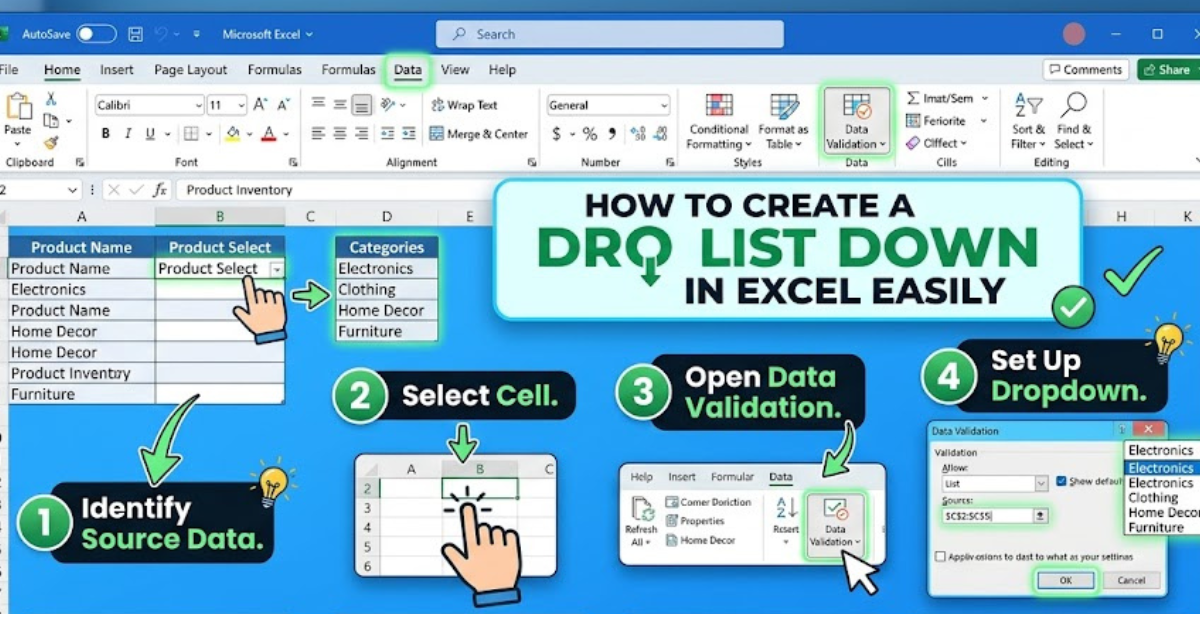
How to Create a Drop Down List in Excel Using Data Validation
This is the most common and recommended method.
Step 1: Create Your List
Type the available choices into one column.
Example:
| A |
|---|
| Apple |
| Banana |
| Orange |
| Mango |
Step 2: Select the Destination Cell
Click the cell where users should choose from the list.
For example:
- B2
- D10
- F5
Step 3: Open Data Validation
Go to:
Data → Data Validation
The Data Validation dialog box appears.
Step 4: Choose “List”
Under Allow, select:
List
Excel now knows you’ll be creating a drop-down menu.
Step 5: Select the Source
Click inside the Source box.
Highlight your list.
Example:
=$A$1:$A$4Click OK.
Your drop-down list is now ready.
How to Create a Drop Down List in Excel by Typing Items Directly
If your list is short, you don’t even need a separate range.
Example:
Yes,No,Maybeor
Small,Medium,LargeEnter these directly into the Source box, separating each item with commas.
This works well for:
- Yes/No
- Pass/Fail
- High/Medium/Low
- Open/Closed
How to Create a Dynamic Drop-Down List
Sometimes your list changes frequently.
For example:
Today:
- Apple
- Banana
Next week:
- Apple
- Banana
- Mango
- Orange
Instead of updating Data Validation every time, use an Excel Table.
Steps
- Select your list.
- Press Ctrl + T.
- Convert it into a table.
- Name the table.
- Reference the table in your validation setup.
As new items are added, the drop-down list updates automatically.
How to Edit an Existing Drop-Down List
Need to change available options?
Simply:
- Select the drop-down cell.
- Go to Data Validation.
- Update the Source.
- Click OK.
If your list references another range, edit the original list instead.
How to Delete a Drop-Down List
Removing it takes only a few seconds.
Steps:
- Select the cells.
- Open Data Validation.
- Click Clear All.
- Press OK.
The existing values remain, but the drop-down menu disappears.
How to Copy a Drop-Down List to Other Cells
Instead of recreating it:
- Select the original cell.
- Press Ctrl + C.
- Highlight the destination cells.
- Press Ctrl + V.
The drop-down settings copy automatically.
How to Create Dependent Drop-Down Lists
Dependent lists change based on a previous selection.
Example:
First Drop-Down
Country
- USA
- Canada
Second Drop-Down
If USA:
- Texas
- California
- Florida
If Canada:
- Ontario
- Alberta
- Quebec
This technique is useful for:
- Product categories
- Departments
- States and cities
- Courses and subjects
It usually involves named ranges and formulas, making forms more interactive.
Best Practices for Excel Drop-Down Lists
To get the most out of your lists:
- Keep options short and descriptive.
- Avoid duplicate values.
- Store source lists on a separate worksheet.
- Use meaningful names for ranges.
- Sort items alphabetically where appropriate.
- Test your spreadsheet before sharing it.
- Lock source lists to prevent accidental changes.
These practices make workbooks easier to maintain over time.
Common Problems and How to Fix Them
The Drop-Down Arrow Doesn’t Appear
Possible reasons include:
- Cell isn’t selected.
- Data Validation wasn’t applied.
- “In-cell dropdown” option is unchecked.
- Worksheet is protected.
New Items Don’t Show Up
This usually happens because the source range is fixed.
Solution:
- Expand the source range manually.
- Or use an Excel Table for dynamic updates.
Users Can Still Type Anything
Check the Error Alert settings in Data Validation.
Enable:
- Stop
- Warning
- Information
Using Stop prevents invalid entries entirely.
Copying Removes Validation
If you paste using Paste Values, validation is lost.
Instead use:
- Normal Paste
- Paste Special → Validation
Real-World Uses for Excel Drop-Down Lists
Drop-down menus make spreadsheets more practical across many industries.
Human Resources
- Job titles
- Departments
- Employment status
- Leave types
Education
- Grades
- Attendance
- Subjects
- Semester selection
Inventory Management
- Product categories
- Warehouse locations
- Supplier names
- Stock status
Finance
- Expense categories
- Payment methods
- Budget departments
- Invoice status
Customer Service
- Ticket priority
- Complaint type
- Resolution status
- Support agent
Advanced Tips for Better Excel Data Validation
Once you’re comfortable with the basics, consider these enhancements:
Combine Drop-Down Lists with Conditional Formatting
Highlight cells automatically based on selected values.
Example:
- High Priority → highlighted
- Completed → green
- Delayed → red
Use Input Messages
Display instructions when users select a cell.
Example:
Please choose a department from the list.
This reduces confusion.
Add Error Messages
Instead of allowing invalid entries, Excel can display customized alerts.
Example:
Please select a valid department from the list.
Use Named Ranges
Named ranges make formulas easier to understand and simplify workbook maintenance.
Key Takeaways
- Excel drop-down lists improve accuracy and consistency.
- Data Validation is the easiest way to create them.
- You can create lists from a cell range or by typing values directly.
- Dynamic lists automatically update as new items are added.
- Dependent drop-down lists create smarter, interactive spreadsheets.
- Regular maintenance keeps your lists accurate and easy to manage.
Frequently Asked Questions
How do I create a drop down list in Excel from another worksheet?
You can reference a range on another worksheet by creating a named range or using an Excel Table. Then use that named range as the source in Data Validation.
Can I create multiple drop-down lists in Excel at once?
Yes. Select all the cells where you want the list, then apply Data Validation once. Every selected cell will receive the same drop-down menu.
Why is my Excel drop-down list not working?
Common causes include incorrect source ranges, disabled in-cell dropdown settings, worksheet protection, or invalid Data Validation configurations. Double-check these settings to resolve the issue.
Can I add colors inside an Excel drop-down list?
Excel’s built-in drop-down menus don’t display colored items. However, you can use Conditional Formatting to color the selected cell after a choice is made.
How do I update a drop-down list automatically?
Convert your source data into an Excel Table. As you add new entries to the table, the drop-down list can expand automatically without requiring manual updates.
Is the process the same in Excel for Microsoft 365 and older versions?
The steps are nearly identical across modern versions, including Microsoft 365, Excel 2021, Excel 2019, and Excel 2016. While the interface may vary slightly, the Data Validation feature works in much the same way.
Conclusion
Knowing how to create a drop down list in Excel is a valuable skill that can make your spreadsheets more organized, accurate, and user-friendly. From simple lists of predefined choices to dynamic and dependent menus, Excel offers flexible tools that reduce errors and streamline data entry.
By applying the techniques and best practices covered in this guide, you can build spreadsheets that are easier to maintain, collaborate on, and analyze. Start with a basic drop-down list, experiment with advanced features like dynamic ranges and conditional formatting, and you’ll quickly see how much more efficient your Excel workflows can become.